PlayableKit Documentation
Quickstart & User Guide
Build once. Convert everywhere.
Version 1.0 · Prepared for PlayableKit users
Introduction
PlayableKit is a web-based conversion tool for Unity playable advertising workflows. It allows a user to upload a Luna/Playworks build and generate platform-ready packages for multiple ad networks from a single source build.
This documentation explains how to prepare the Unity project, install dependencies, generate a development build, upload the generated ZIP file to PlayableKit, and download converted ad network builds.
| Topic | Description |
|---|---|
| Product | PlayableKit - Luna build converter for playable ads |
| Primary Use | Convert one Luna/Playworks playable ZIP into multiple ad network formats |
| Users | Unity developers, playable ad creators, UA teams, creative teams, and agencies |
| Supported OS | Windows and macOS development environments |
| Supported App Platforms | Android and iOS Unity projects |
How to use Playable Kit
Upload a build, create your app and concept, then convert and download network-ready creatives.
Upload to PlayableKit Dashboard
Open the PlayableKit dashboard in your browser and sign in to your account.
https://playablekit.app- Open the Applications page.
- Create a new application or select an existing application.
- If creating a new application, enter the app name and store links.
- PlayableKit can use Android and iOS links for CTA and metadata handling.
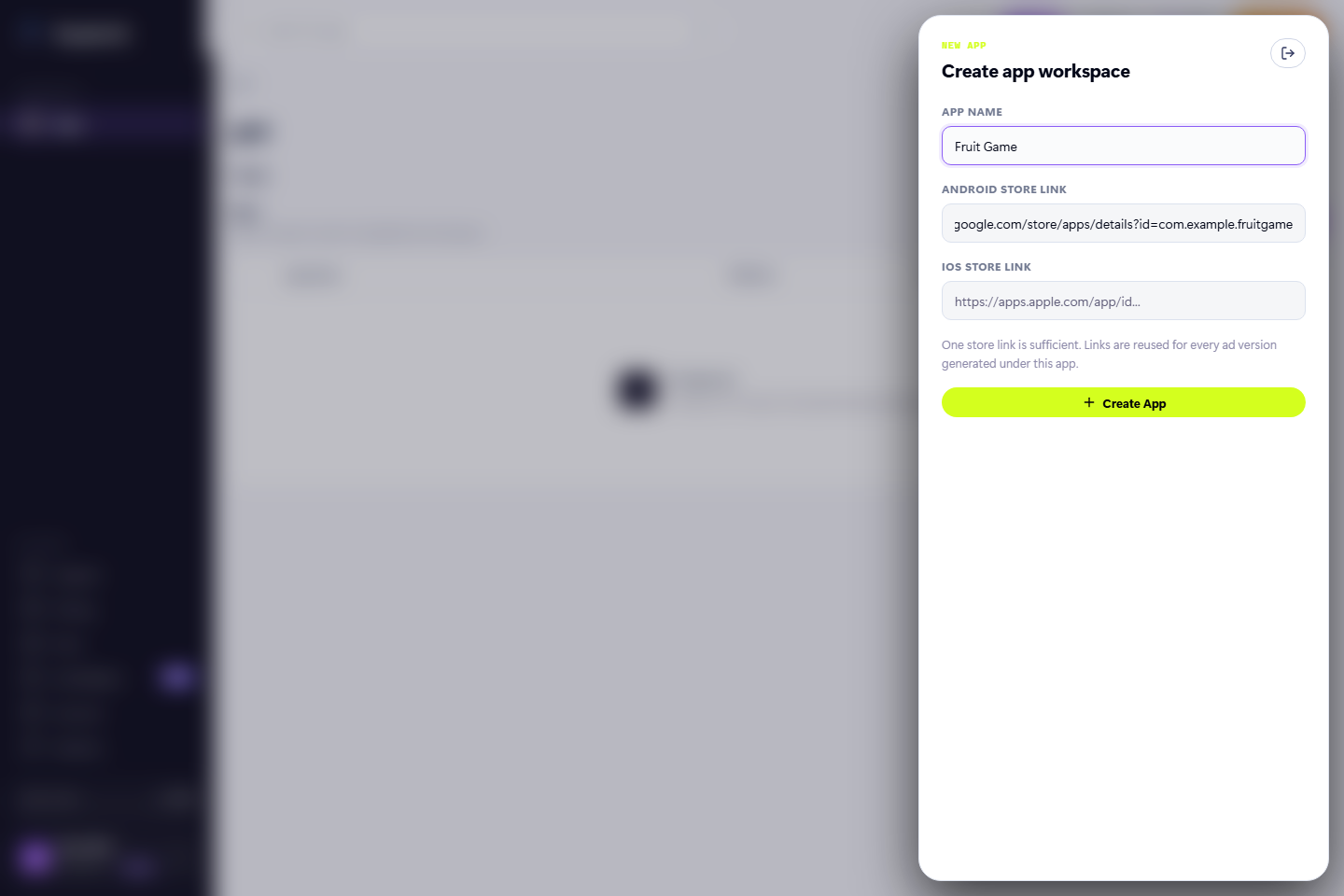
- After creating or selecting the app, open the app page.
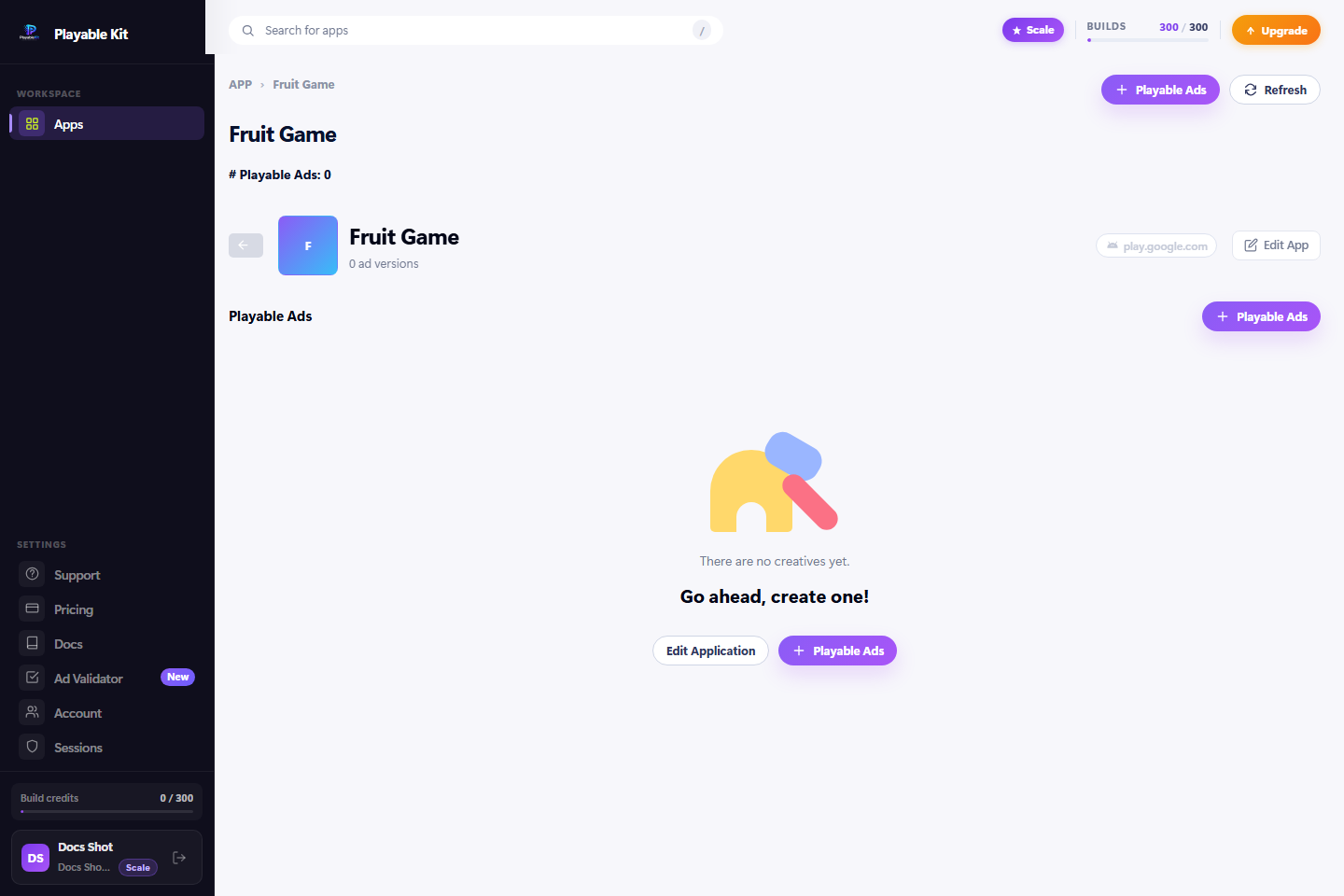
- Click Playable Ads.
- Drag and drop the generated Luna ZIP file.
- Enter the concept name.
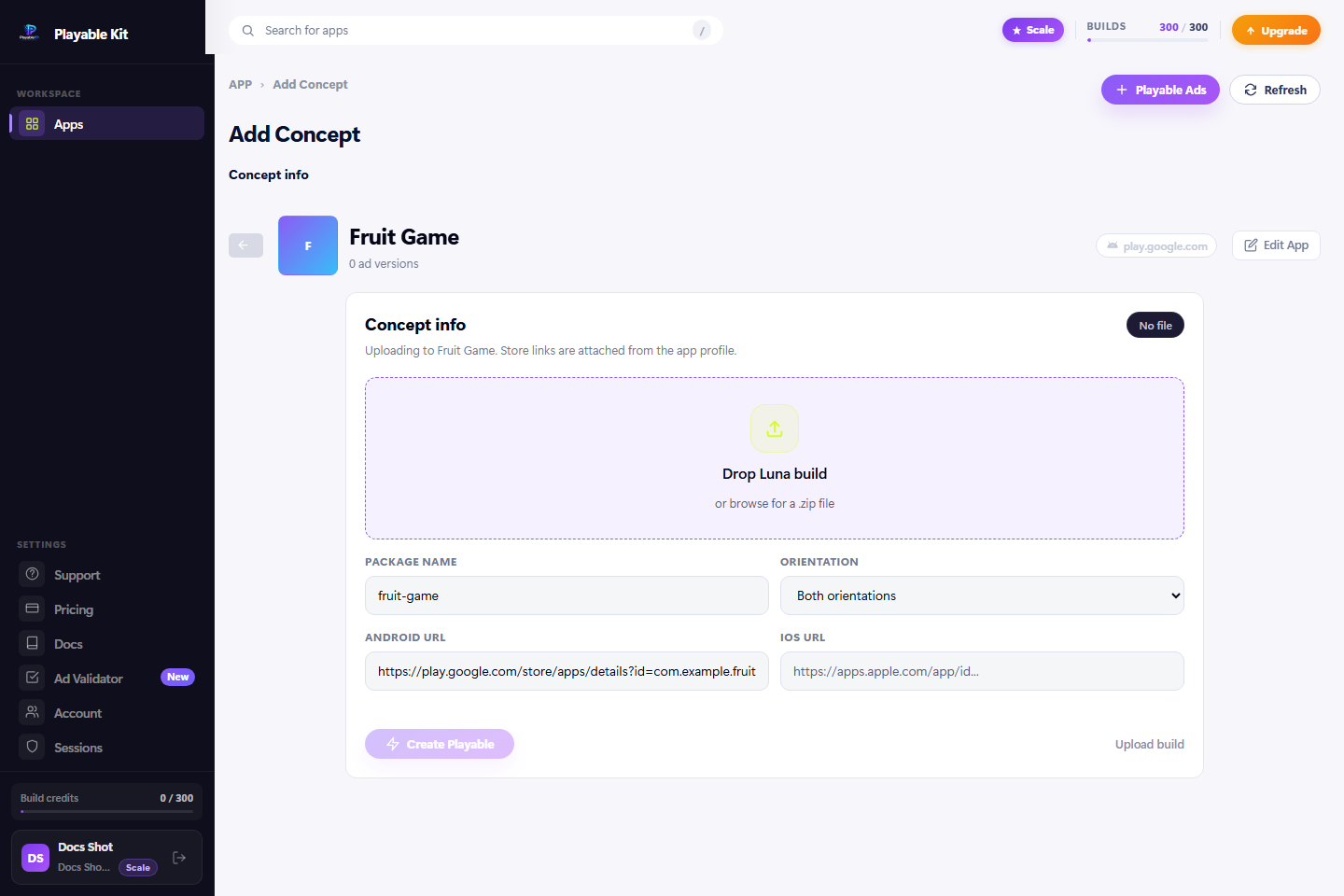
| Field | Description | Example |
|---|---|---|
| Application Name | Name of the game or app. | GAME NAME |
| Android Store Link | Google Play link used for Android CTA. | https://play.google.com/store/apps/details?id=com.company.game |
| iOS Store Link | App Store link used for iOS CTA. | https://apps.apple.com/app/id000000000 |
| Concept Name | Name of the playable ad concept. | Tutorial Interactive Creative |
Create Application and Playable Ad Concept
PlayableKit organizes uploads using Applications, Concepts, and Creatives. This structure helps you manage multiple games, variations, and ad network exports.
| Level | Meaning |
|---|---|
| Application | The game or app for which playable ads are being created. |
| Concept | A playable idea or creative direction under an application. |
| Creative | The uploaded playable ZIP and its processed build outputs. |
| Network Build | The final package prepared for a selected ad network. |
9.1 Naming Recommendations
- Use short and readable concept names.
- Include campaign, level, or feature name if useful.
- Avoid special characters in file names and concept names.
- Use version numbers when testing multiple iterations.
- Example: Racing_Tutorial_V01 or Zombie_Mode_Test_A.
Convert and Download Ad Network Builds
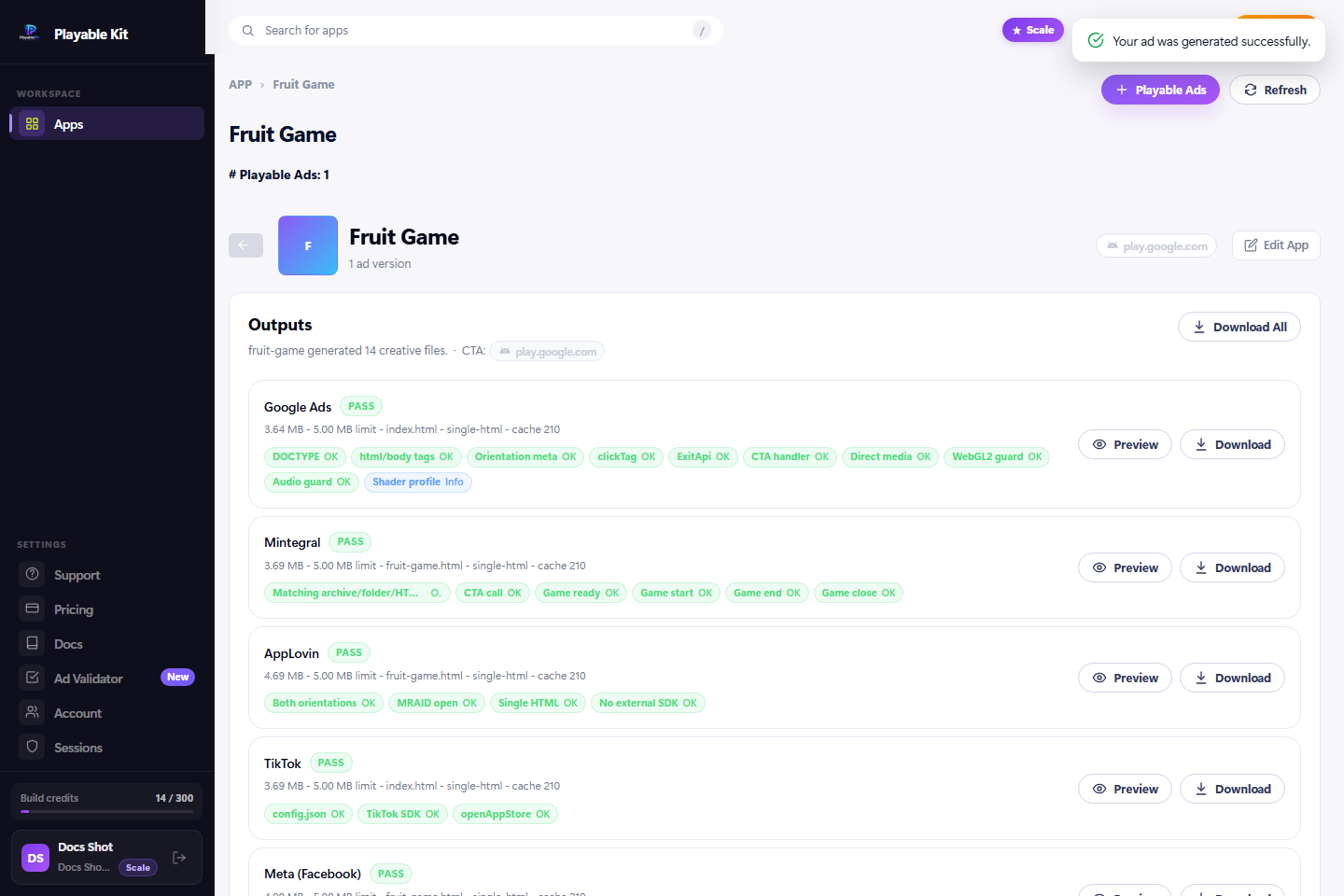
After the upload is processed, open the concept and select the creative you want to export. Choose the required ad networks and publish the creatives. PlayableKit will generate network-specific packages for download.
- Open the Application.
- Open the Concept.
- Select the uploaded Creative.
- Select one or more ad networks.
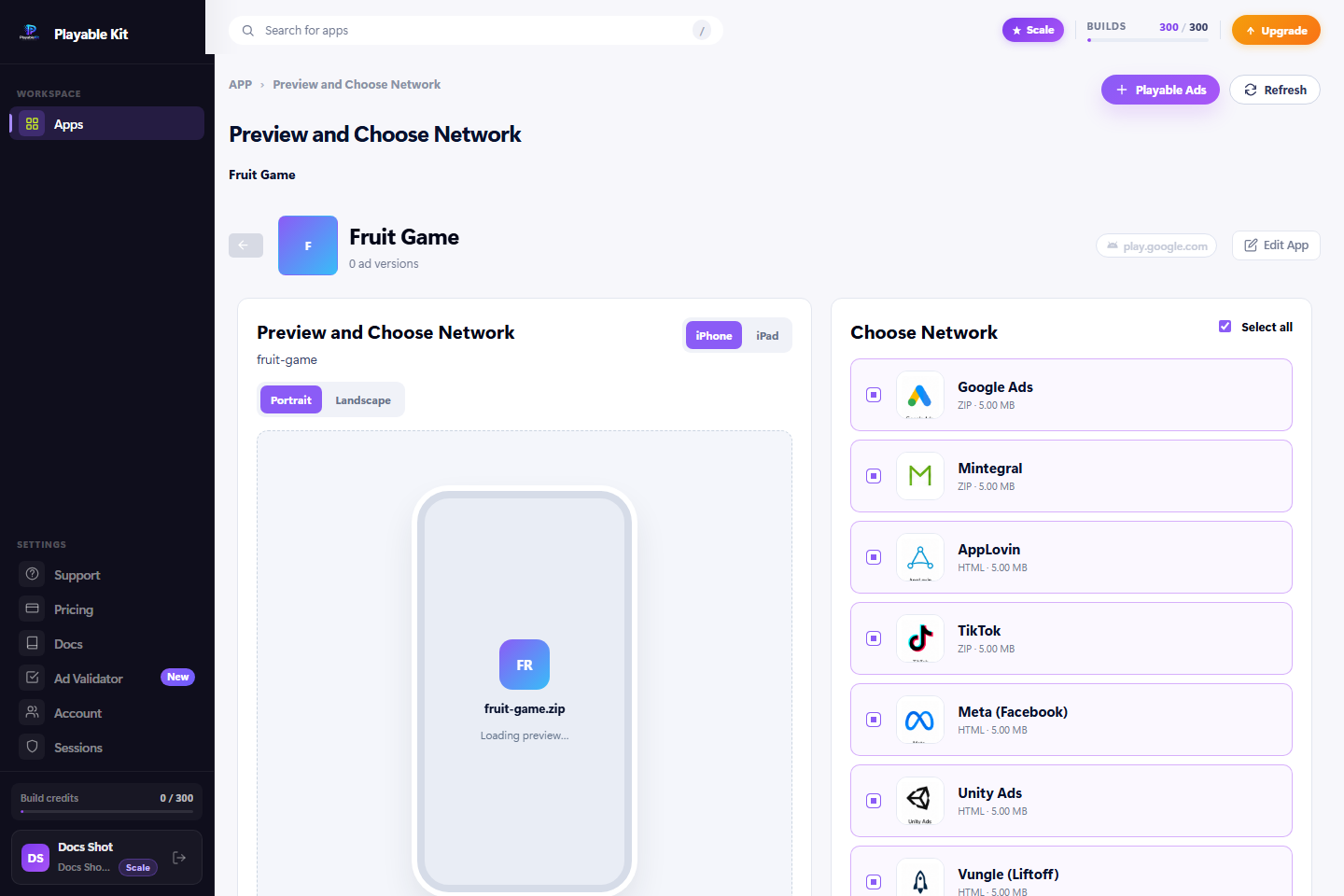
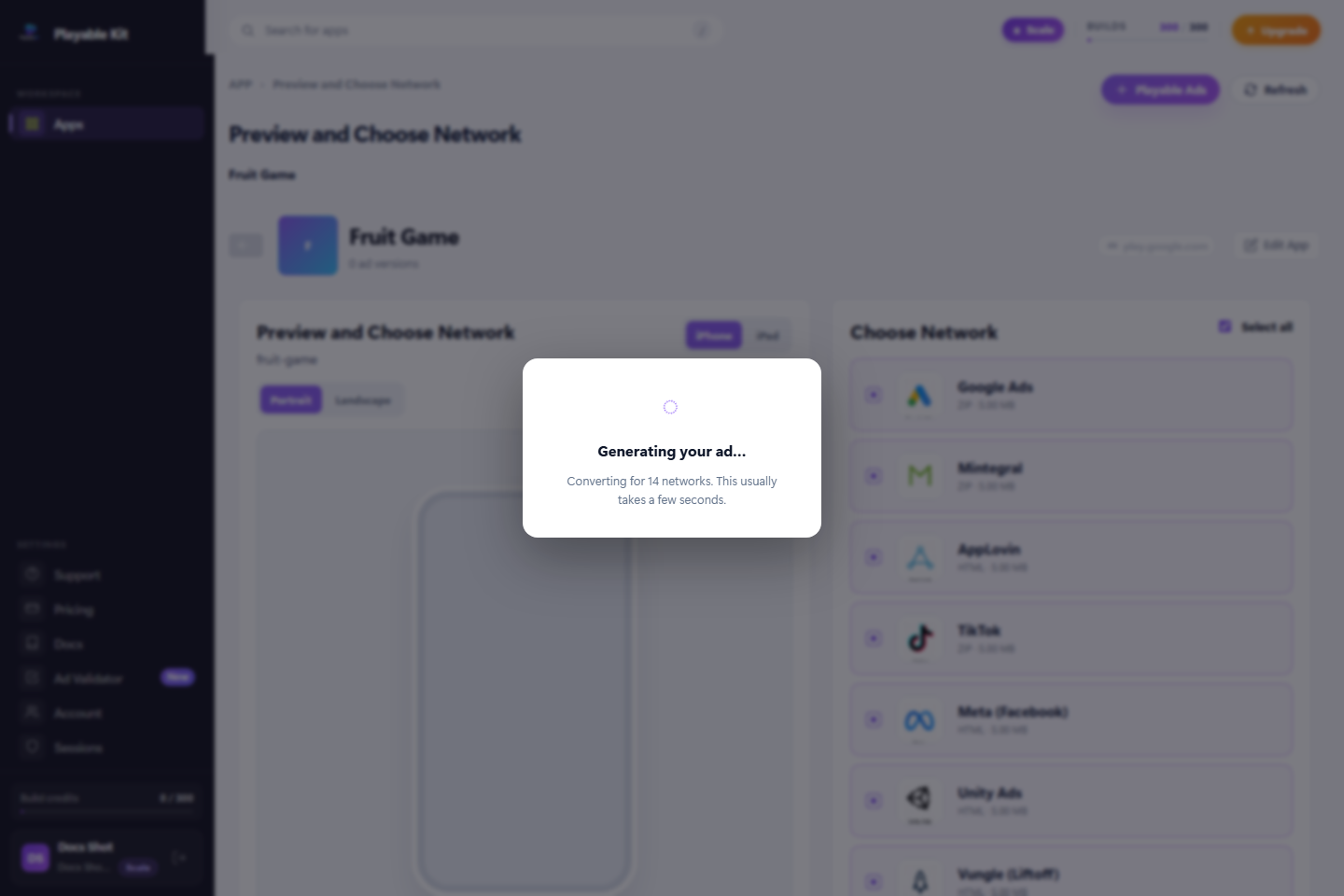
- Click Generate.
- Wait for processing to finish.
- Download the converted build package for each selected network.
| Ad Network Output | Purpose |
|---|---|
| Google Ads | Package prepared for Google playable ad submission. |
| AppLovin | Package prepared for AppLovin playable campaign upload. |
| Mintegral | Package prepared for Mintegral campaigns. |
| Unity Ads | Package prepared for Unity Ads campaigns. |
| IronSource | Package prepared for IronSource campaigns. |
| Other Supported Networks | Use the same publish and download workflow. |
How to build from Unity with Luna Playworks
Set up Unity, install the plugin, generate a develop build, and locate the Luna ZIP to upload.
Supported Platforms and Requirements
2.1 Supported Operating Systems
| Operating System | Supported Versions | Notes |
|---|---|---|
| Windows | Windows 10 64-bit, Windows 11 64-bit | Recommended for most Unity playable build workflows. |
| macOS | Monterey, Ventura, Sonoma, Sequoia or later | Recommended when preparing iOS-oriented Unity projects or working on Mac-based pipelines. |
2.2 Supported Unity Versions
| Unity Version | Support Status |
|---|---|
| Unity 2020.3.16 or higher | Supported |
| Unity 2021.3 LTS | Supported |
| Unity 2022.3 LTS | Supported |
2.3 Supported App Platforms
| Platform | Typical Store URL | Usage |
|---|---|---|
| Android | Google Play Store URL | Use when the playable ad CTA should redirect to an Android app. |
| iOS | Apple App Store URL | Use when the playable ad CTA should redirect to an iOS app. |
Development Environment Setup
3.1 Windows Setup
- Install Unity Hub and a supported Unity Editor version.
- Install Visual Studio 2019 or later. Visual Studio 2022 is recommended.
- Install .NET Framework 4.7 or higher, including SDK and targeting packs.
- Install MSBuild through Visual Studio Installer or Visual Studio Build Tools.
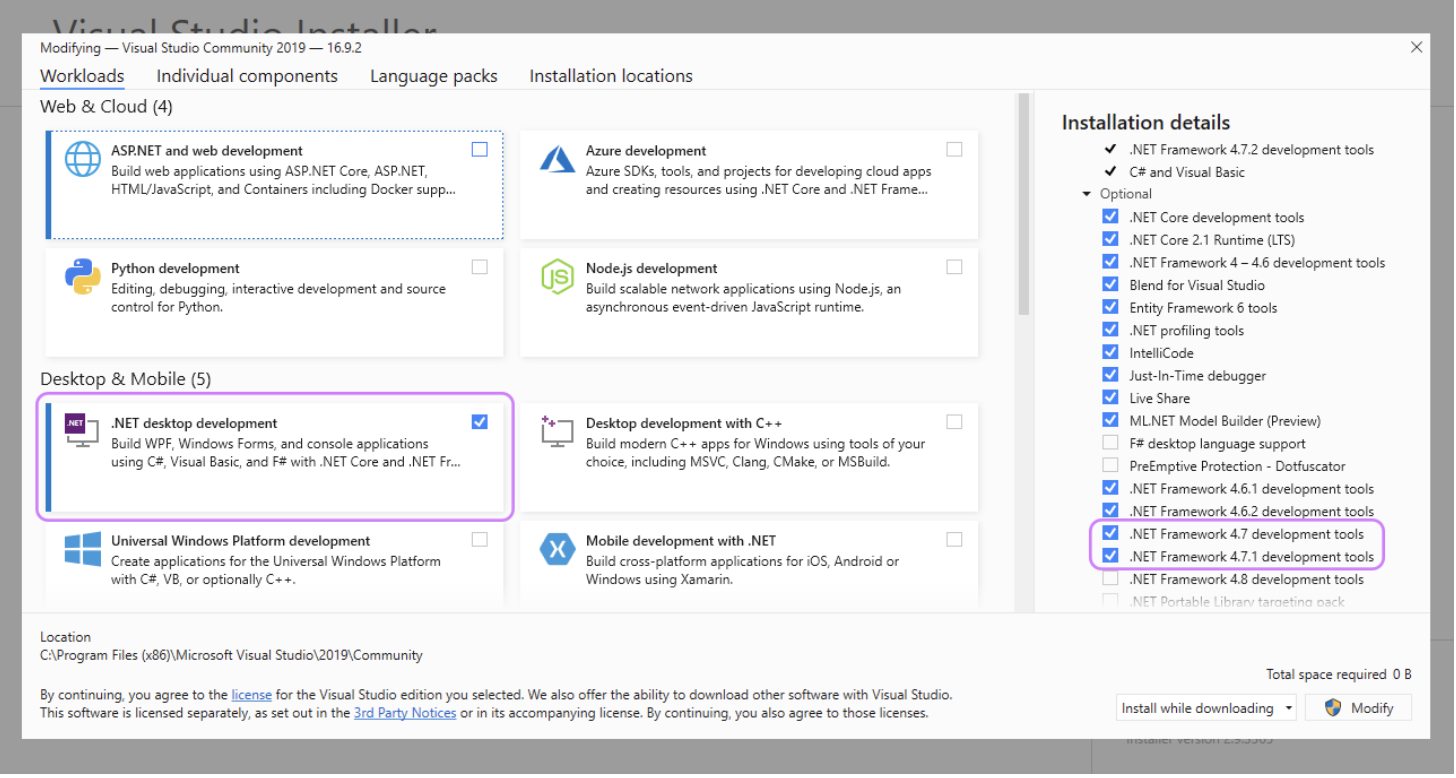
C:\Program Files (x86)\Microsoft Visual Studio\2019\Community\MSBuild\Current\Bin\MSBuild.exe3.2 macOS Setup
- Install Unity Hub and a supported Unity Editor version.
- Install Xcode from the App Store or Apple Developer downloads.
- Install Xcode Command Line Tools.
- Open Xcode at least once and accept the license agreement.
- Install Git if your project uses package dependencies from repositories.
xcode-select --installxcode-select -pNote: On macOS, ensure Unity has permission to access project folders, Downloads, and external drives if the project or plugin is located outside the default workspace.
Install the Playworks/Luna Plugin
- Download the latest Unity Playworks (Luna) plugin package.
- Extract the downloaded package outside your Unity project folder.
- Open the Unity project that you want to convert into a playable ad.
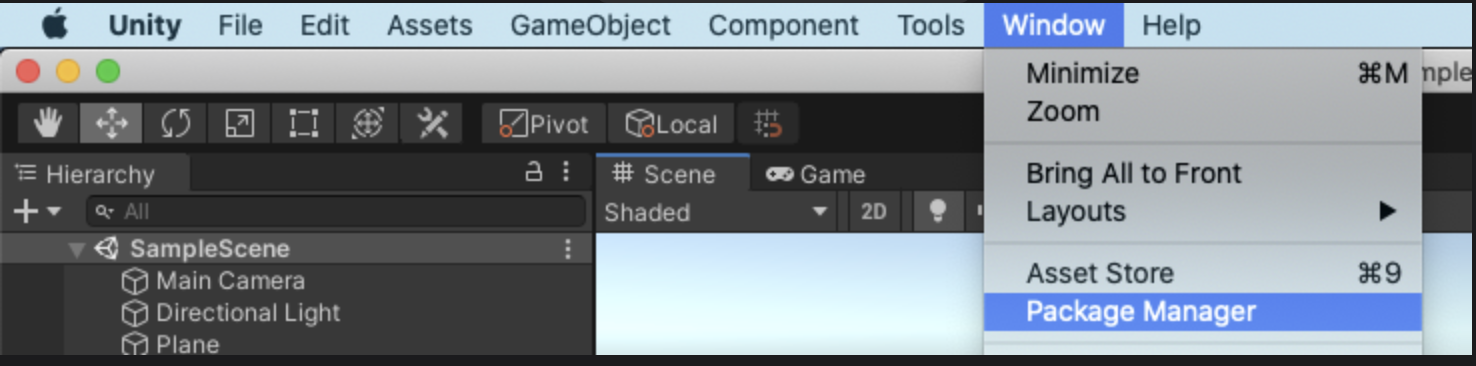
- Open Window > Package Manager.
- Click the + button and select Add Package From Disk.
- Browse to the Playworks/Luna plugin folder and select script/package.json.
- Wait for Unity to finish importing and compiling the package.
Window > Package Manager > + > Add Package From Disk > Playworks/script/package.jsonAfter installation, open the plugin from Tools > Playworks. On Windows, the shortcut is Ctrl + E. On macOS, the shortcut is Cmd + E.
Verify the Plugin Installation
Before converting a production project, test the plugin in a clean Unity project. This reduces the chance of project-specific scripts, packages, or settings blocking the first build.
- Create a new Unity project using a supported Unity version.
- Install the Playworks/Luna Plugin through Package Manager.
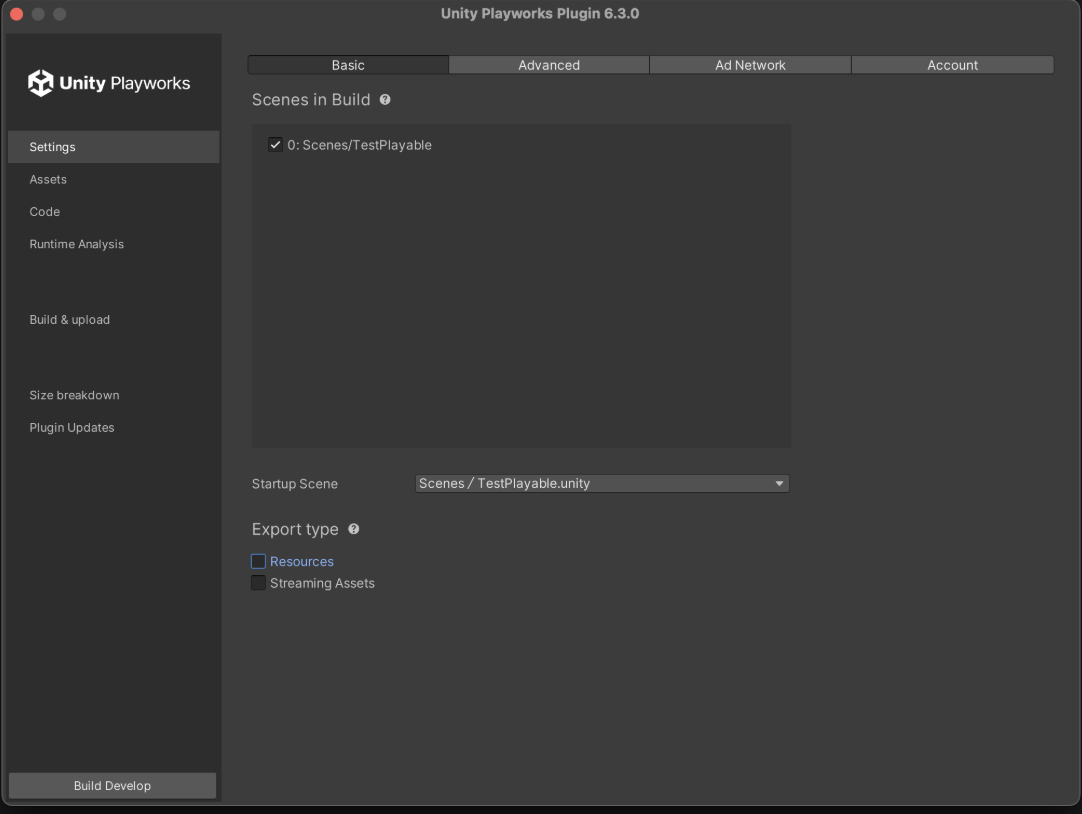
- Open Tools > Playworks.
- Select the scene or scenes to include in the export.
- Select the startup scene.
- Open the Build & Upload tab.
- Click Build Develop.
- After the build finishes, click Open In Browser.
| Check | Expected Result |
|---|---|
| Plugin Window Opens | Playworks/Luna window launches without errors. |
| Scenes Listed | Project scenes are visible for selection. |
| Build Develop | Build process completes successfully. |
| Open In Browser | The playable launches in the browser preview. |
| Input Test | Tap/click controls respond correctly. |
Create a Develop Build
A develop build is used to test the playable locally before uploading it to the PlayableKit web dashboard.
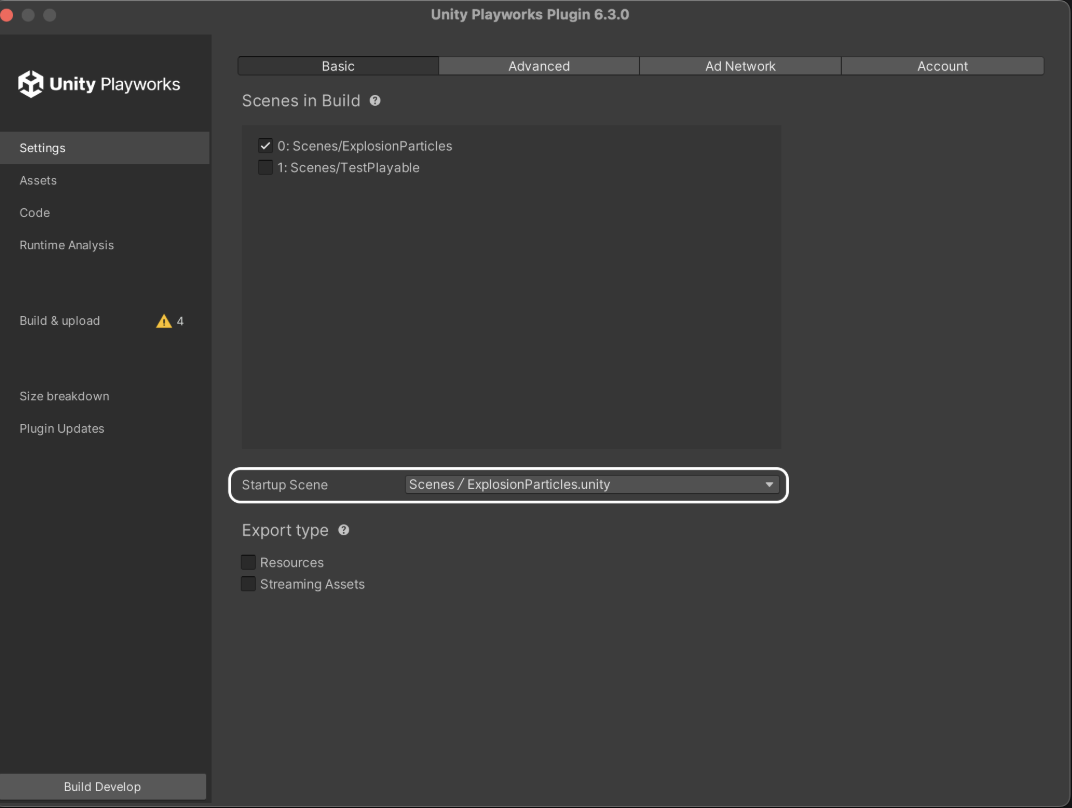
- Open Tools > Playworks.
- Select all required scenes.
- Confirm the startup scene.
- Go to Build & Upload.
- Click Build Develop.
- Wait until all build stages complete.
6.1 Build Validation Checklist
- First scene loads correctly.
- Main gameplay interaction works.
- Buttons are clickable on desktop and mobile preview.
- No missing textures, models, fonts, or audio files.
- Game does not require keyboard-only controls unless intended.
- CTA flow is clear and visible.
- Build size is acceptable for ad network requirements.
Locate the Generated Luna Build ZIP
After a successful build, Playworks/Luna generates a ZIP package inside the Unity project folder. This ZIP file is the file that should be uploaded to PlayableKit.
ProjectRoot\LunaTemp\stage4\create-hub\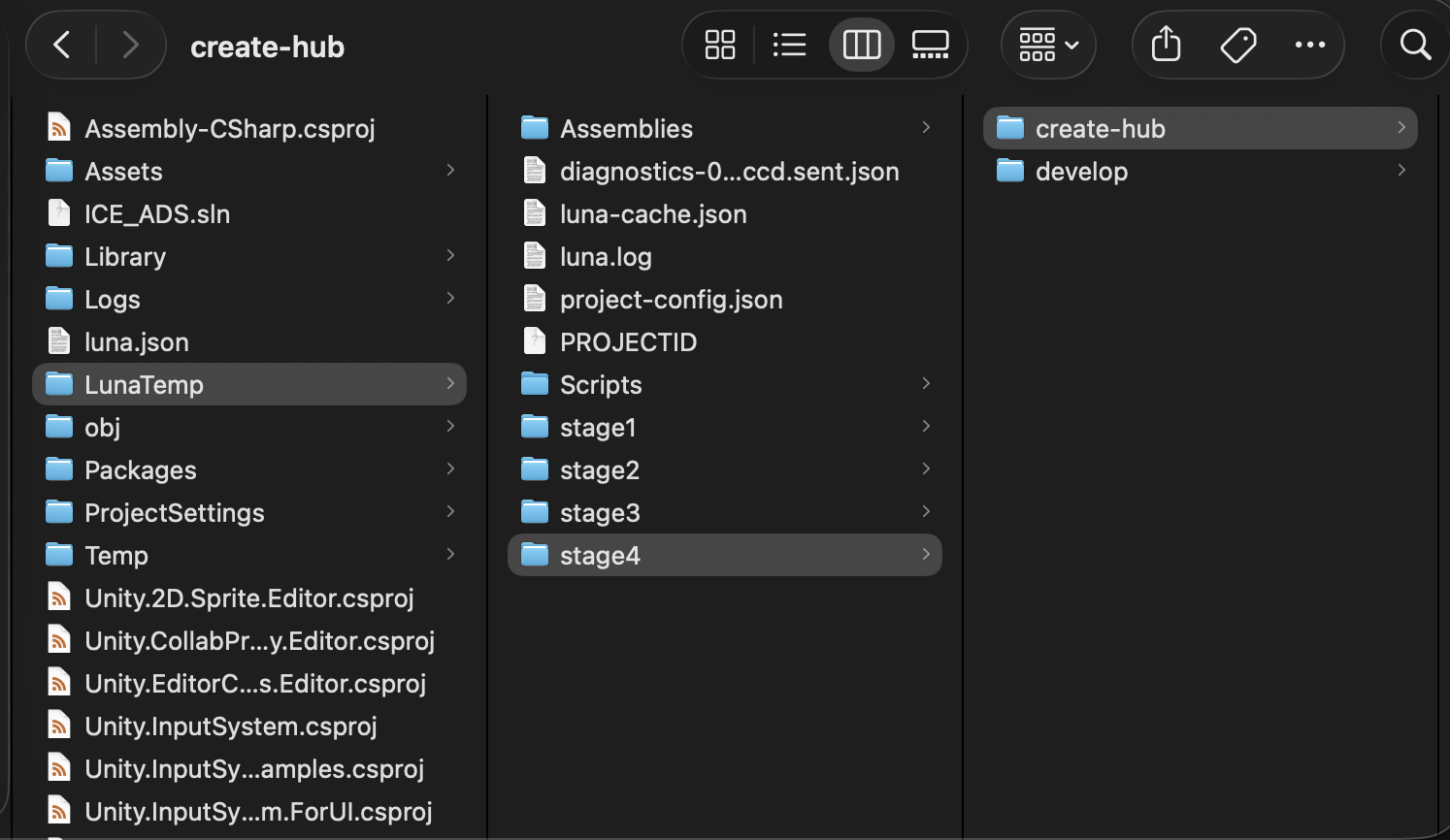
Recommended Project Structure
For smoother conversion, keep the Unity playable project clean and focused. A playable ad should load quickly, have a short interaction loop, and avoid unnecessary packages.
Assets/ Scenes/ Scripts/ Art/ Audio/ UI/ Playable/ProjectSettings/Packages/- Keep only required scenes in the build.
- Remove unused plugins before export.
- Avoid unsupported native SDK dependencies in playable builds.
- Compress textures and audio where possible.
- Use mobile-friendly UI layout and input handling.
- Test in browser before uploading to PlayableKit.
Troubleshooting, FAQ & Support
Troubleshooting
| Issue | Possible Cause | Recommended Fix |
|---|---|---|
| Plugin does not open | Package import failed or scripts did not compile | Check Unity Console, reinstall plugin, and restart Unity. |
| Build fails on Windows | Missing .NET Framework or MSBuild | Install .NET 4.7+ SDK/targeting packs and Visual Studio Build Tools. |
| Build fails on macOS | Xcode tools missing or license not accepted | Run xcode-select --install and open Xcode once. |
| Browser preview is blank | Startup scene missing or asset loading failed | Confirm startup scene and check browser console. |
| ZIP file not found | Build did not reach final stage | Rebuild and check LunaTemp/stage4/create-hub. |
| Upload fails | Invalid ZIP, large file, or network issue | Rebuild ZIP, reduce size, and upload again. |
| Converted build fails on network | Network-specific restrictions or unsupported assets | Check output logs and simplify playable assets. |
FAQ
Can I use PlayableKit for Android and iOS projects?
Yes. PlayableKit supports playable ad workflows for both Android and iOS Unity projects. Store links can be used for CTA configuration and metadata.
Do I need to upload APK or IPA files?
No. PlayableKit expects the generated Luna/Playworks ZIP file from the Unity build process, not APK or IPA files.
Can I use Windows and macOS?
Yes. PlayableKit supports both Windows and macOS development workflows, provided the required Unity and build dependencies are installed.
Where is the ZIP file generated?
The ZIP file is usually located in ProjectRoot\LunaTemp\stage4\create-hub after the build completes.
Can I upload multiple concepts for the same app?
Yes. You can create multiple concepts under the same application to test different playable ideas, tutorials, levels, or campaign variations.
Do I need a separate build for each ad network?
No. Upload one compatible Luna build to PlayableKit, then export network-specific builds from the dashboard.
Support and Best Practices
14.1 Best Practices
- Test the playable locally before upload.
- Keep the interaction short and clear.
- Show the CTA naturally after the main interaction.
- Optimize file size before export.
- Use readable concept names and version numbers.
- Maintain separate concepts for major creative variations.
- Keep a backup of every uploaded ZIP and downloaded network package.
14.2 Suggested Support Channels
| Support Item | Recommended Address |
|---|---|
| General Support | [email protected] |
| Billing | [email protected] |
| System Notifications | [email protected] |